Tracking finance agreements
Bought a car on finance? GarageHQ tracks the agreement alongside everything else you log against the vehicle, so your total cost of ownership reflects what you are actually paying rather than just the sticker price.
It handles PCP, HP, and lease (PCH) agreements, works out what you have paid to date, copes with refinancing and early settlement without double counting, and folds the result into the cost report next to servicing, repairs, fuel, tax, insurance, and MOT.
1. Set ownership when you add the vehicle
On the Add Vehicle form, choose Owned outright or On finance. Either way, enter the purchase price, the car's worth. Choosing On finance reveals the finance fields so the first agreement is created with the vehicle.
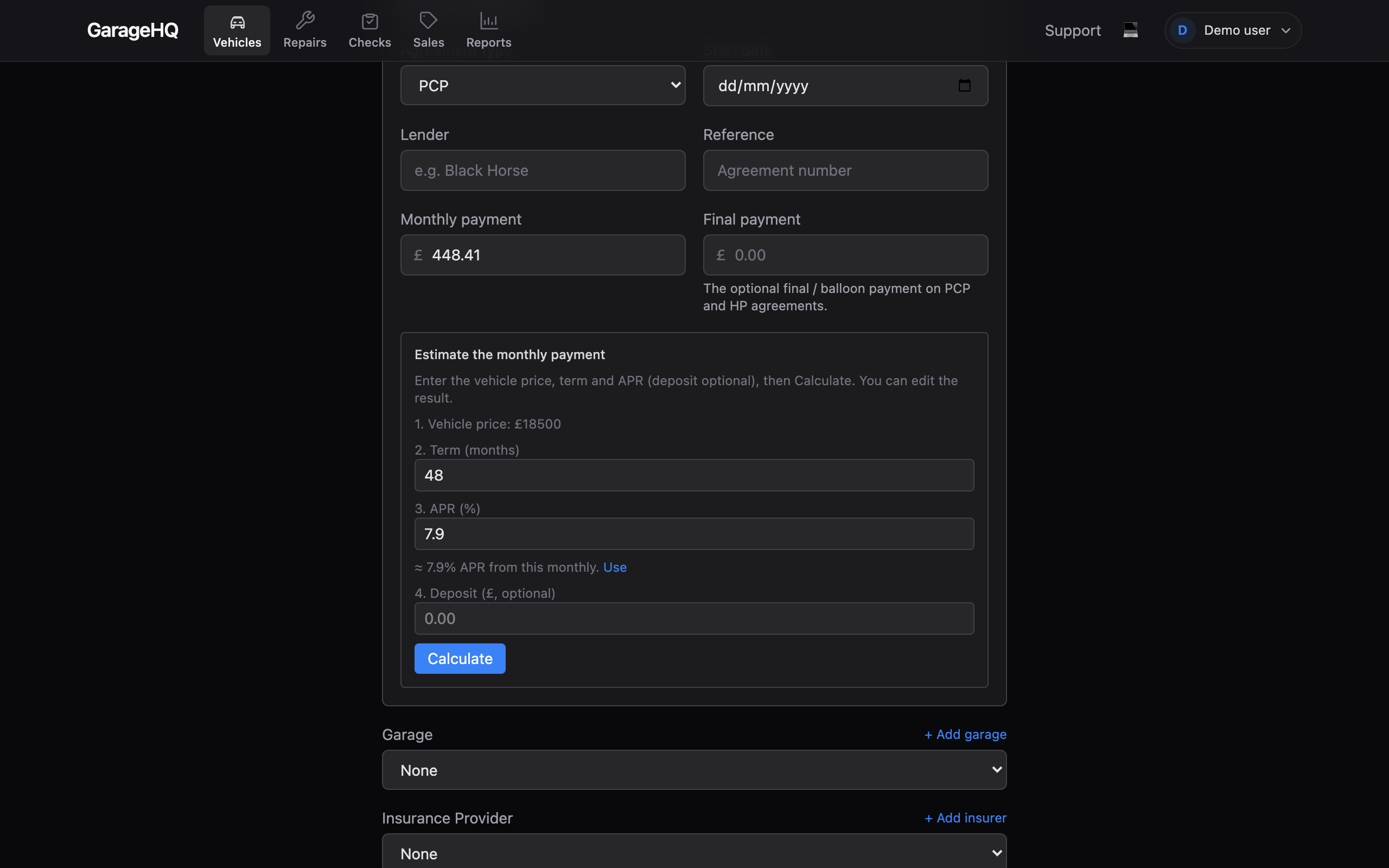
You can also add finance later: open any vehicle, switch to the Finance tab, and click + Add agreement.
2. Let the monthly payment estimate itself
As you enter the purchase price, deposit, term, and APR, GarageHQ estimates the monthly payment for you and fills it in. The estimate updates live as you type, and you can always type over it with the exact figure from your agreement, which is what is stored.
3. Pick the right agreement type
- PCP records a deposit, a monthly payment, and an optional final / balloon payment (the GMFV) you only pay if you keep the car at the end.
- HP records a deposit and a monthly payment. You own the car at the end. Any small option-to-purchase fee goes in the final-payment field.
- Lease (PCH) records the initial rental (in the deposit field) and a monthly payment. The car is handed back at the end, so there is no balloon and no final payment.
4. Refinance an agreement
If you refinance, open the agreement and choose Refinance. GarageHQ closes the current agreement on the refinance date, stops it accruing from then, and opens a new agreement that carries on at the new terms. The old agreement is kept as a linked, read-only record for your history, and costs are counted up to the handover on one side and from the handover on the other, with no overlap.
5. End an agreement
When the agreement stops, choose End agreement and record why: sold, part-exchanged, settled early, handed back, or completed naturally. Add the date it ended and, if you settled early, the actual settlement figure, which replaces the remaining projected monthly payments.
If you sold or part-exchanged, you can also record a disposal value (what you got back). It does not change the agreement's cost, but it powers the report toggle below.
6. Mark the balloon paid (PCP)
For a PCP, the final / balloon payment is recorded but not counted by default. At or after the agreement's scheduled end date, a Mark balloon paid action appears. Use it if you kept the car, which adds the balloon to your total. If you handed the car back, leave it unmarked and the balloon is excluded.
7. See finance in your cost report
From the top nav click Reports, then open Cost of ownership (TCO). Financed vehicles show a Finance category; outright vehicles show an Acquisition category. Both sit alongside servicing, repairs, fuel, tax, insurance, and MOT.
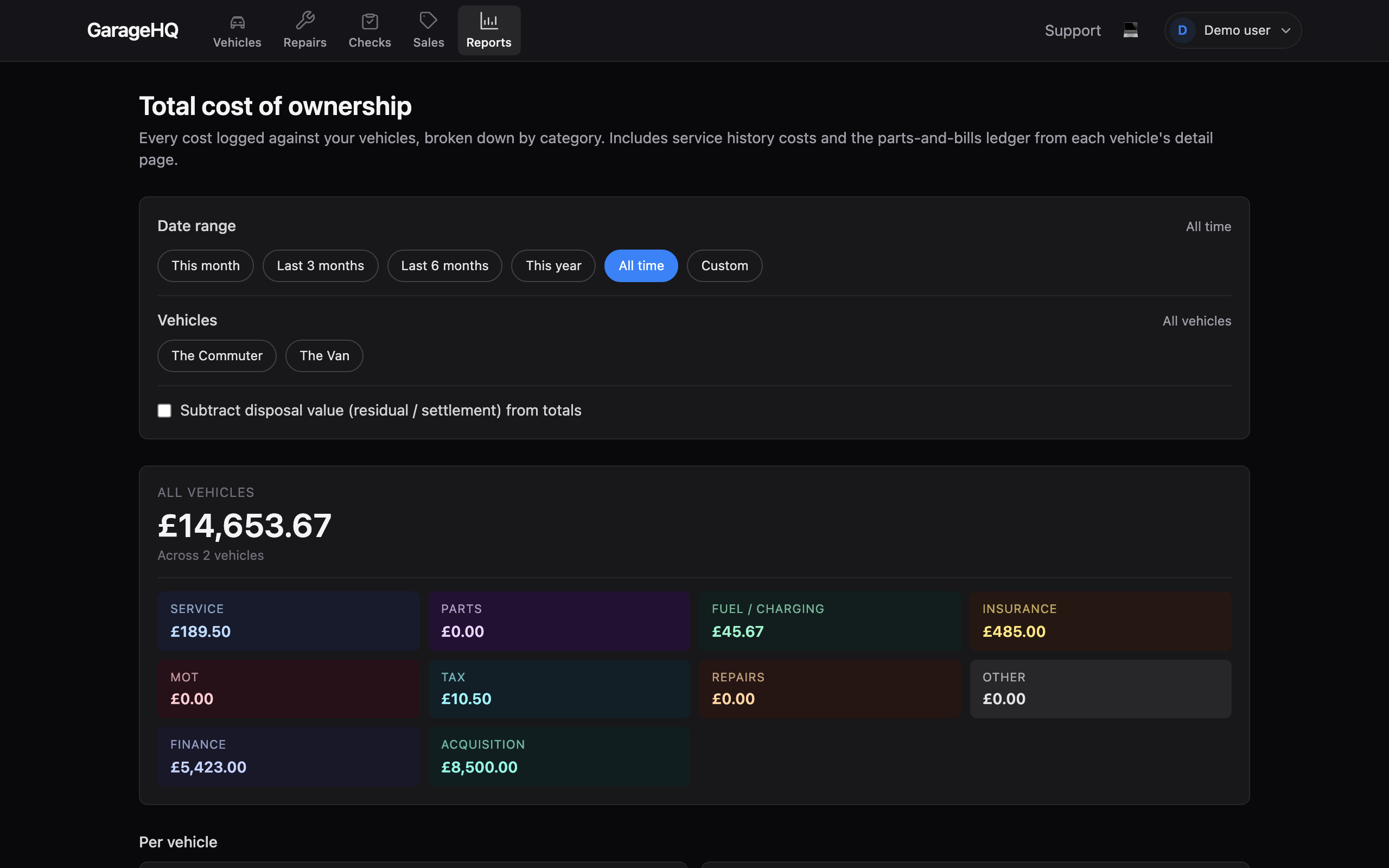
The report also lets you select several vehicles for a combined plus per-vehicle view, shows cost per mile and per month where mileage allows, and has a Subtract disposal value toggle (off by default) to net off what you recovered on a sale or part-exchange.
What next?
- Tracking vehicle costs for the rest of your running costs and the cost report.
- Adding a vehicle to set ownership at the start.
- Selling a vehicle when it is time to move it on.