Creating your GarageHQ account
Every GarageHQ customer starts with a 14-day free trial, no credit card needed. This guide walks through how to create an account and what happens after you sign in for the first time.
1. Open the sign-in page
Go to garagehq.uk and click Start free trial or Sign in in the header. Either link takes you to the sign-in page.
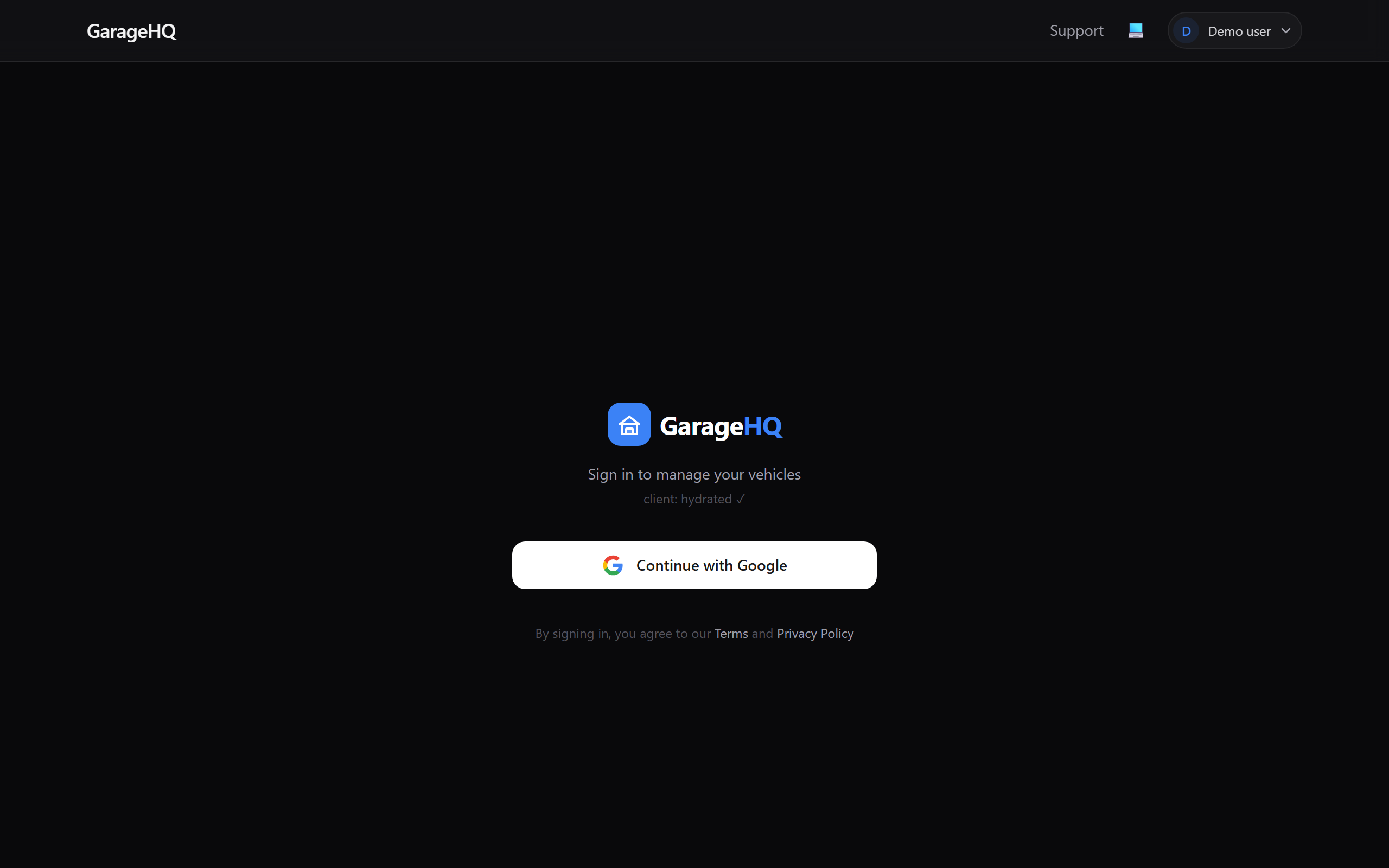
2. Type your email and click Continue
GarageHQ asks for your email first so it knows how to handle you next:
- If you're new, the next screen shows the available sign-up methods (Google or email via Microsoft).
- If you've signed in before, GarageHQ takes you straight to whichever method you used last time. You'll see a brief "Signing you in with Google…" or "Signing you in with Microsoft…" message before the redirect. If you realise you want a different method (e.g. you usually use Google but want to try the Microsoft account today), click Use a different method during that brief window and you'll see the full picker.
3. Pick a sign-in method (new users)
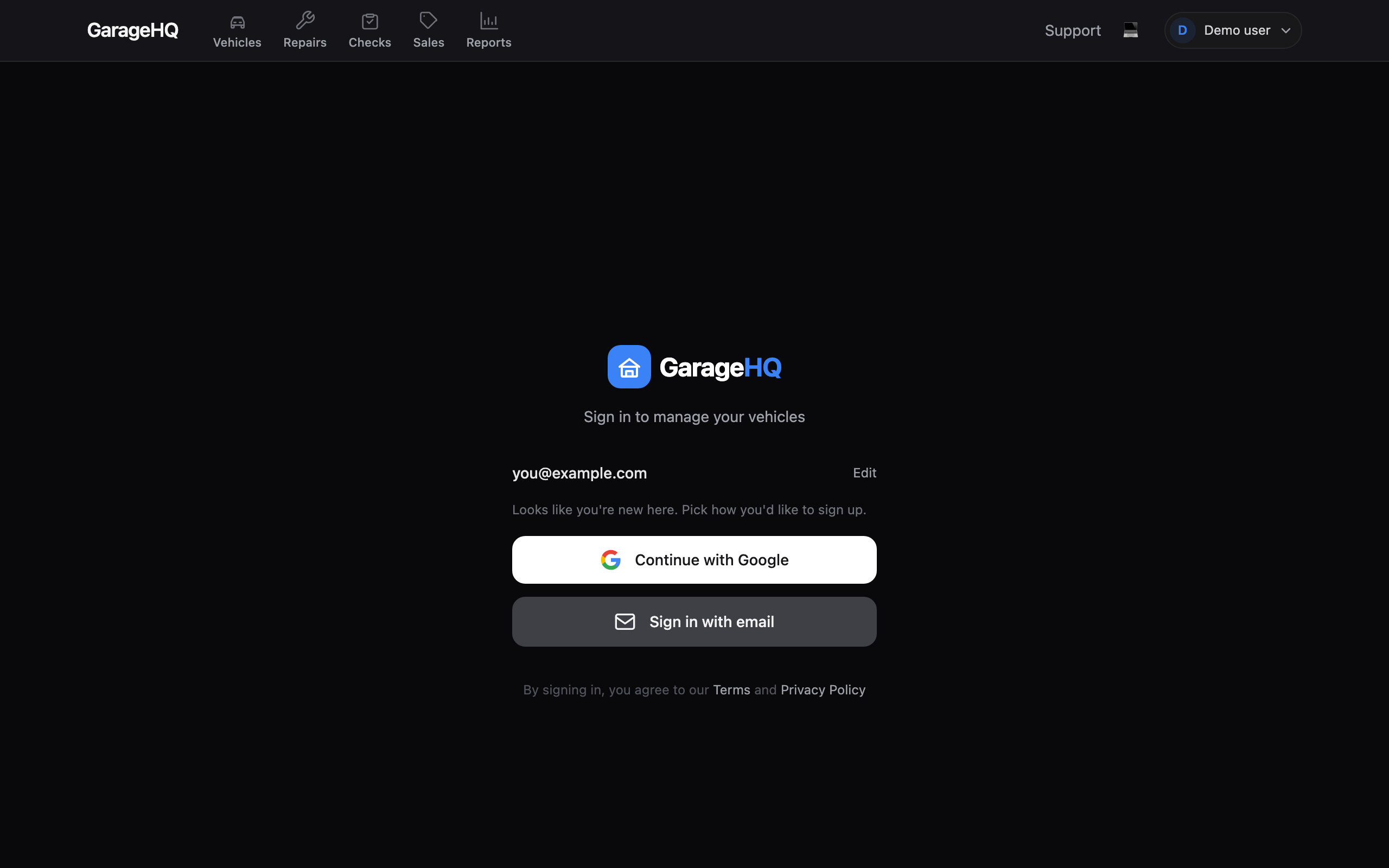
You'll see two options:
Continue with Google
Best for: anyone who already uses a Google account and wants one-click sign-up.
Click Continue with Google and pick an account from Google's chooser. GarageHQ receives your name and email from Google, no password involved, no extra form to fill.
Sign in with email
Best for: customers who'd rather not tie their workspace to a Google account, or who prefer a traditional email + password sign-in (with optional two-factor authentication).
Click Sign in with email. You'll jump to a GarageHQ-branded Microsoft sign-in page hosted by Microsoft Entra External ID. First-time visitors get a Create account link; you set an email and password there, and Microsoft handles the email verification + optional 2FA. After signing up you come straight back to GarageHQ signed in.
4. First sign-in: set up your organisation
Brand new accounts land on the onboarding page to create an organisation (a "workspace" for you and any team members). See Setting up your organisation for the next step.
Troubleshooting
- You typed the wrong email and got auto-redirected to a sign-in provider that doesn't recognise you. Hit your browser's back button to return to GarageHQ, then click Edit next to the email field and try again.
- "We couldn't find an account with this email address" on Microsoft's page means the Microsoft provider didn't find an account for that email. Click Create account on the Microsoft page to sign up first.
- Google sign-in stuck on "Signing in…" usually means a pop-up blocker intercepted Google's chooser. Allow pop-ups for
garagehq.ukand retry. - The auto-redirect happened too fast for me to click "Use a different method". Press your browser back button to return to the sign-in page, type your email and click Continue, then click Use a different method as soon as the redirecting screen appears (you have about 1.5 seconds).
What next?
- Setting up your organisation, the next step right after first sign-in.
- Adding your first vehicle, what you'll do once your workspace is ready.