Configuring single sign-on
Single sign-on lets your members sign in through your organisation's identity provider (Microsoft Entra ID, Google Workspace, Auth0, Okta, anything that speaks OIDC). When configured and enforced, anyone with an email on one of your verified domains is automatically routed through the IdP rather than choosing a provider from the picker.
Before you start
You'll need:
- Organisation owner role. Admins can't see or change SSO config.
- Access to your IdP. Admin permission to register a new application.
- DNS access for your email domain. You'll add a TXT record to prove ownership.
Other identity providers
The walkthrough below uses Microsoft Entra ID because it's the most common in the GarageHQ customer base, but any OIDC-compliant provider works. The same wizard, same redirect URI, same fields. The discovery URL is the only piece that changes:
| Provider | Discovery URL pattern |
|---|---|
| Microsoft Entra ID | https://login.microsoftonline.com/<tenant-id>/v2.0/.well-known/openid-configuration |
| Google Workspace | https://accounts.google.com/.well-known/openid-configuration |
| Auth0 | https://<your-tenant>.auth0.com/.well-known/openid-configuration |
| Okta | https://<your-domain>.okta.com/.well-known/openid-configuration |
| Keycloak | https://<your-host>/realms/<realm-name>/.well-known/openid-configuration |
The IdP-side configuration shape is consistent: register a web application, set the redirect URI to https://app.garagehq.uk/api/auth/sso/callback, generate a client secret, ensure the openid, profile, and email scopes are enabled.
Step 1: Register an application at your IdP
The example below is for Microsoft Entra ID (formerly Azure AD). The same fields apply for any OIDC-compliant provider.
In the Entra portal, open Identity → Applications → App registrations and click + New registration:
| Field | Value |
|---|---|
| Name | GarageHQ SSO (or anything descriptive) |
| Supported account types | Accounts in this organisational directory only |
| Redirect URI | Platform: Web. URL: https://app.garagehq.uk/api/auth/sso/callback |
After registering, copy the Application (client) ID and Directory (tenant) ID from the overview page. Then:
- Certificates & secrets → + New client secret: copy the value immediately (Entra shows it only once)
- API permissions → + Add a permission → Microsoft Graph → Delegated: add
openid,profile,email. Click Grant admin consent. - Token configuration → + Add optional claim → ID: tick
email,family_name,given_name. Accept Entra's offer to add the matching Graph permission.
Build the discovery URL from your tenant ID:
https://login.microsoftonline.com/<tenant-id>/v2.0/.well-known/openid-configuration
Step 2: Save the configuration in GarageHQ
In GarageHQ, navigate to Settings → Single sign-on.
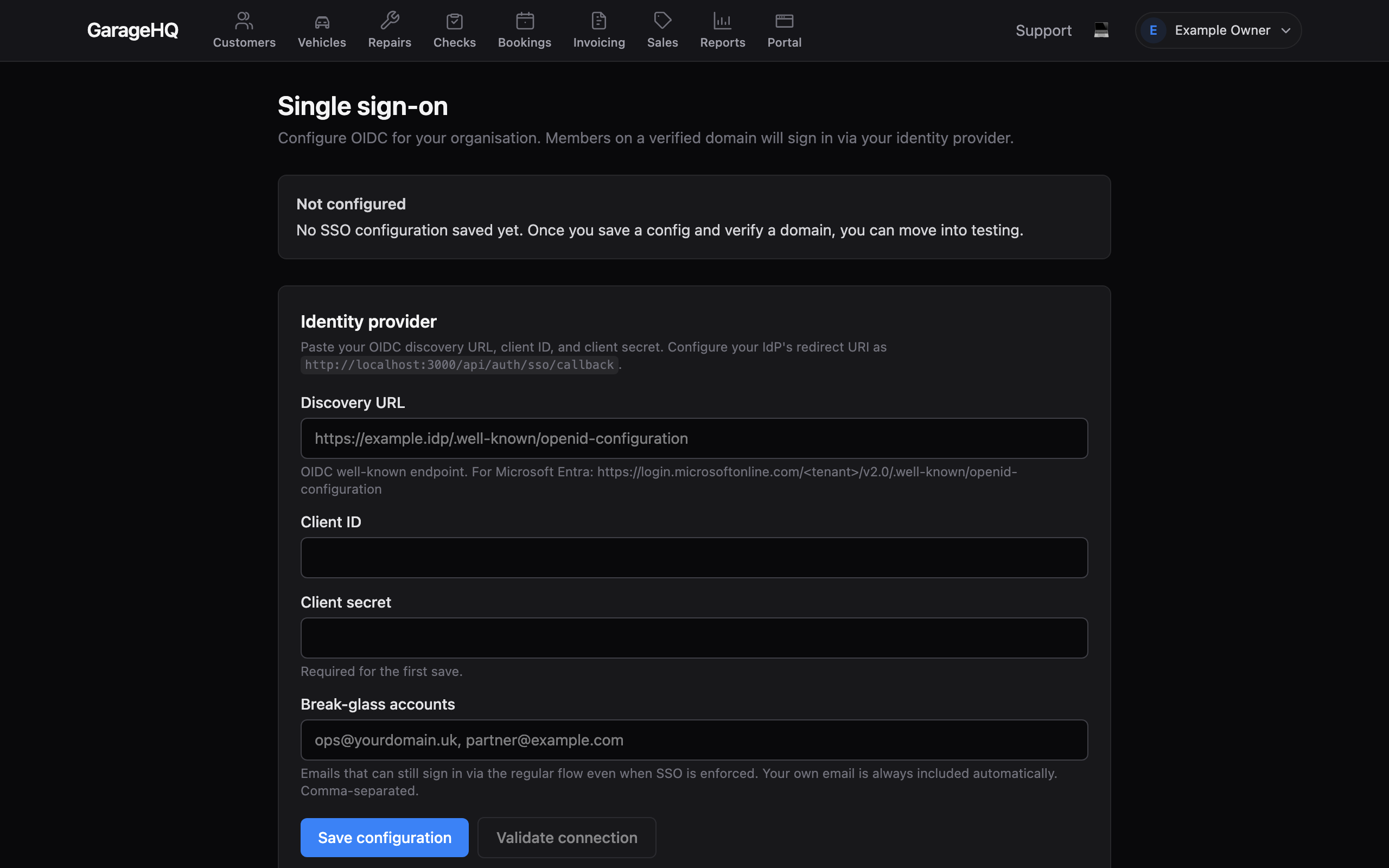
Fill in the Identity provider card:
- Discovery URL: the URL you built in Step 1
- Client ID: the Application (client) ID from your IdP
- Client secret: the secret value (the wizard masks it as dots once saved)
- Break-glass accounts: comma-separated emails that bypass SSO even when enforced. Your own email is always included automatically. Add an external email (for example a personal Gmail) so you can still get in if your IdP has an outage.
Click Save configuration, then Validate connection. A successful validate shows the issuer string and caches the IdP's public keys (JWKS) so future sign-ins skip the discovery fetch.
Step 3: Verify your domain
In the Verified domains card, add the domain part of your members' emails (for example acme.co.uk). The wizard returns a verification token and shows the exact DNS record you need to publish:
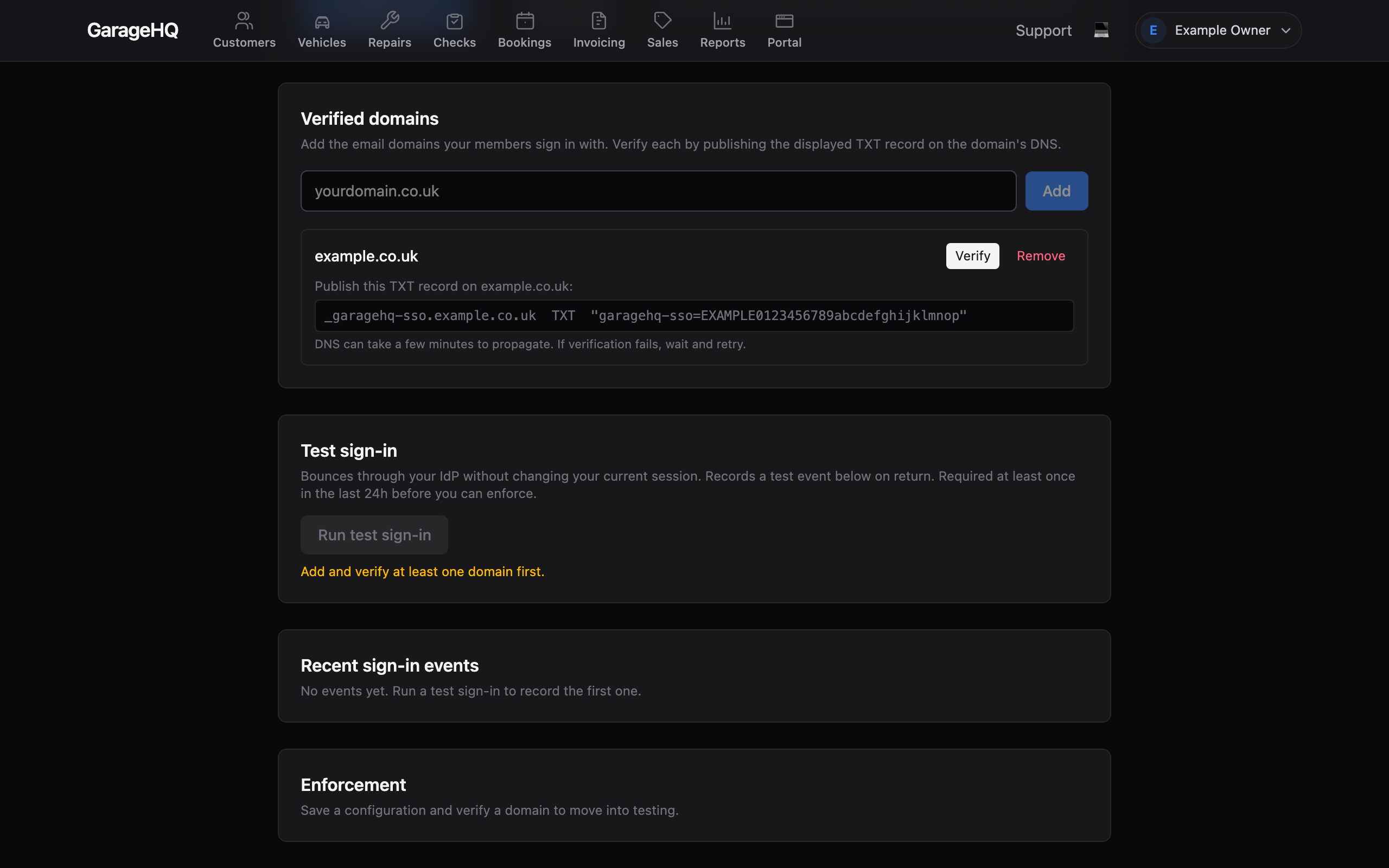
Publish a TXT record on your DNS provider:
Host:    _garagehq-sso.<your-domain>
Type:    TXT
Value:   garagehq-sso=<token>
(Cloudflare and Route 53 accept just _garagehq-sso in the Host field and append your domain automatically. Other providers may want the full hostname.)
DNS propagation is usually under five minutes on Cloudflare DNS but can take up to an hour on slower providers. When you click Verify, the wizard queries 1.1.1.1. If the record is live, the row turns green.
Step 4: Test sign-in
Once you have a saved configuration AND a verified domain, the Enforcement card shows a Start testing button. Click it. Banner flips to Testing.
In Testing state, members continue using their existing sign-in method (Google, email, whatever). Nothing changes for them. Only the owner uses the Test sign-in card.
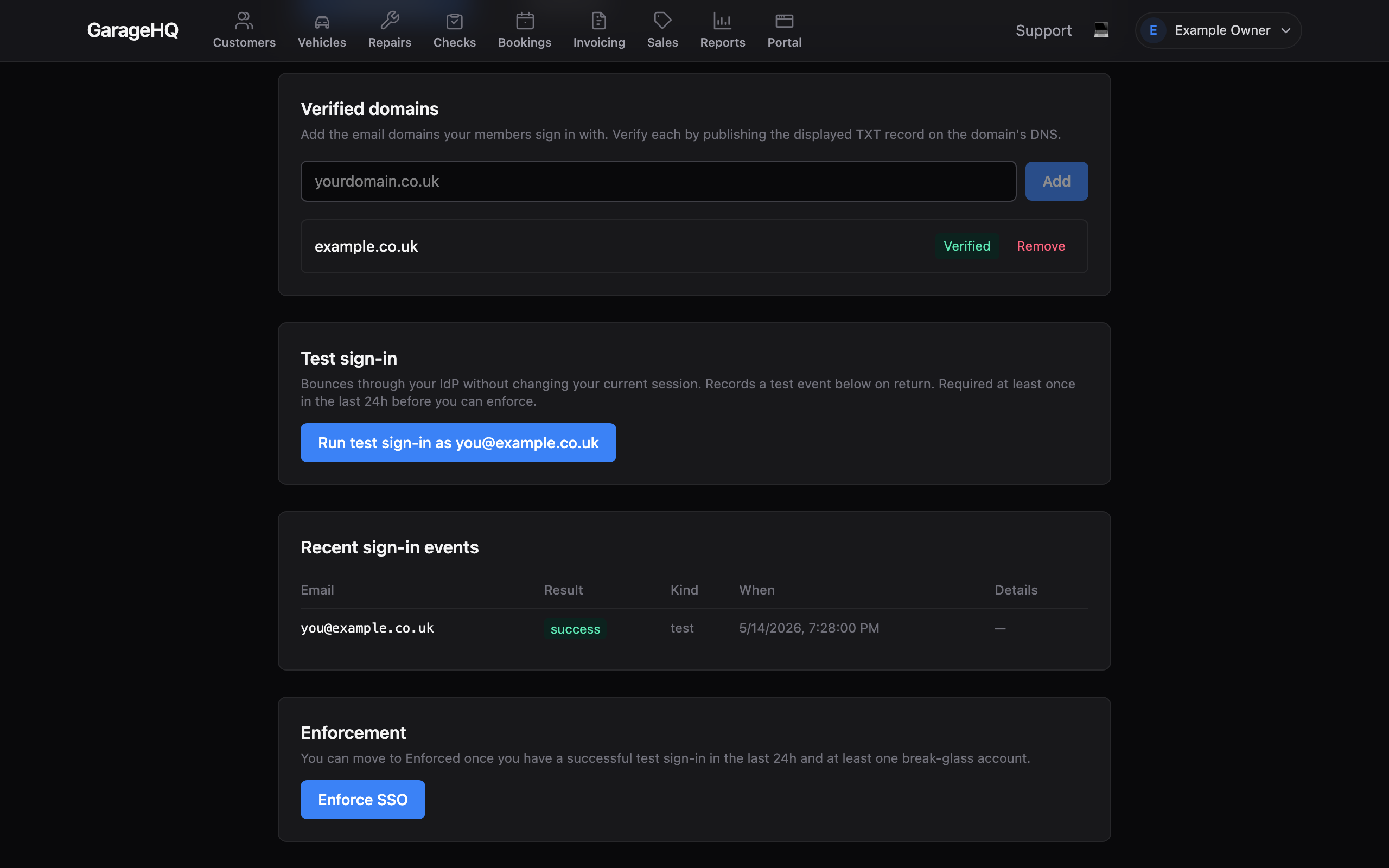
Click Run test sign-in in the Test sign-in card. It opens a new tab, redirects to your IdP for authentication, and bounces back to /settings/sso?test=success. A row appears in the Recent sign-in events table.
If the test fails, the table shows the error message returned by the IdP. Common causes:
- AADSTS50011 reply URL mismatch: the redirect URI in your IdP doesn't match exactly. Check for trailing slashes, http vs https, typos in the hostname.
- AADSTS65001 consent missing: you didn't click Grant admin consent on the API permissions screen.
- Validation says the discovery URL is unreachable: typo in the tenant ID, or the
/v2.0/segment is missing.
Step 5: Enforce
After at least one successful test sign-in in the last 24 hours, the Enforce SSO button becomes available. Click it. Banner flips to Enforced.
From this point:
- Members with emails on verified domains sign in only through your IdP. The
/loginpicker is skipped. - Members on other domains continue using their existing methods.
- Break-glass accounts retain the regular picker as a safety net.
Rollback
If your IdP has an outage or a configuration goes wrong, click Disable enforcement on the Enforcement card. The change is immediate (no gate, no confirmation) and rolls the org back to Testing state. Members on verified domains immediately regain access via the regular picker.
You can re-enforce as soon as the IdP recovers.
Troubleshooting
Test sign-in returns me to /login with ?error=NoSso: Either the wizard's state is disabled and you haven't clicked Start testing, or the email used (from your active GarageHQ session) is on a domain that isn't verified. Check the State banner and the Test sign-in card's reason message.
Verify keeps failing despite the TXT being published: Confirm the record is at _garagehq-sso.<domain> (not at the root) and that the value starts with garagehq-sso=. Use dig TXT _garagehq-sso.yourdomain.co.uk @1.1.1.1 from a terminal to see exactly what the verifier sees.
Sign-in works at the IdP but the GarageHQ tab gets a generic error: Check Recent sign-in events: a failure row has the IdP's error message. The most common cause is the redirect URI in your IdP not matching https://app.garagehq.uk/api/auth/sso/callback exactly.
Members can't sign in at all: Click Disable enforcement. Investigate root cause without time pressure. Use break-glass accounts to administer GarageHQ in the meantime.