Bulk importing vehicles from CSV
When you're onboarding a workshop's customer base or migrating a fleet from another system, entering vehicles one by one gets old fast. The CSV import takes a spreadsheet and creates up to 200 vehicles in a single request.
1. Open the import modal
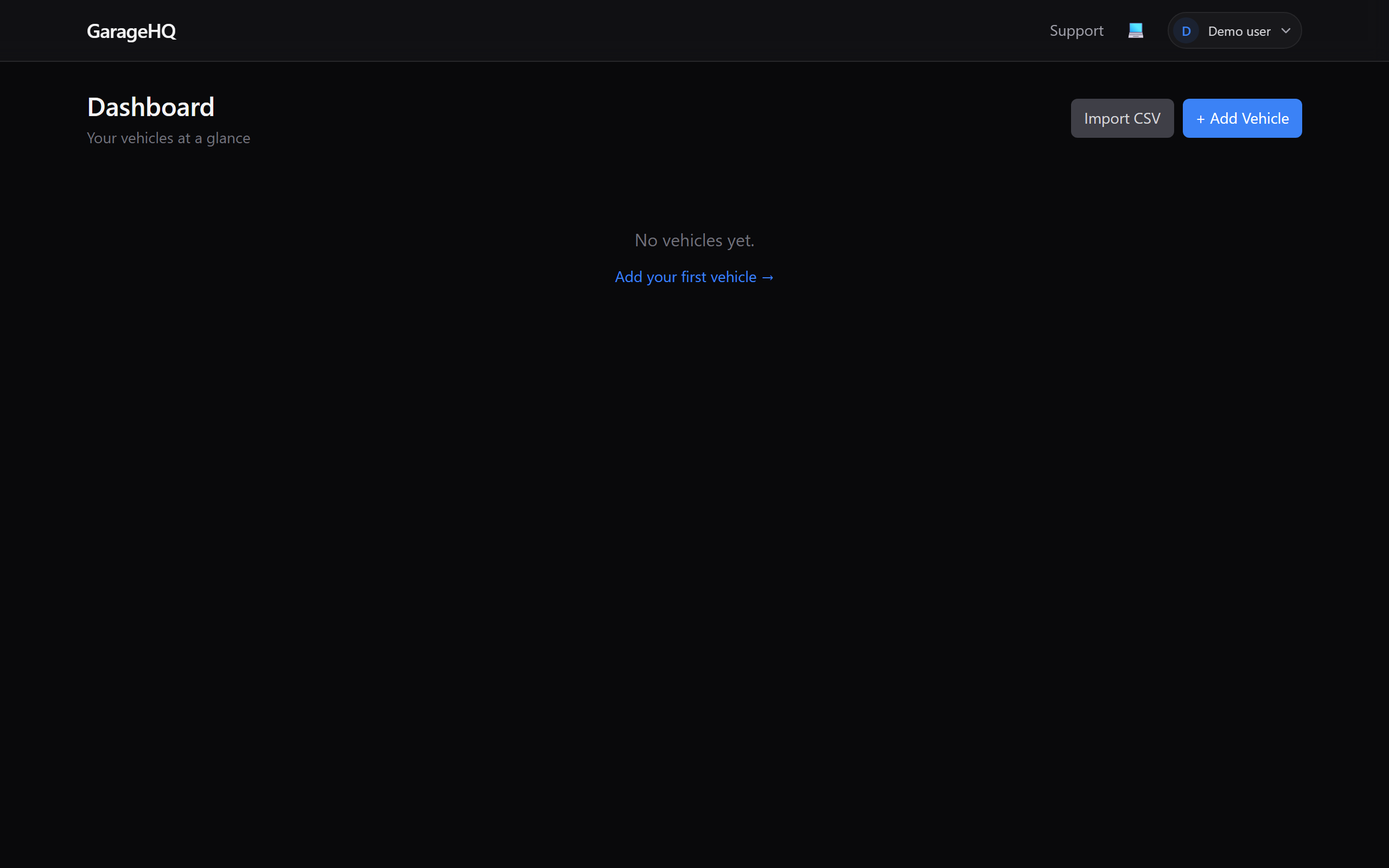
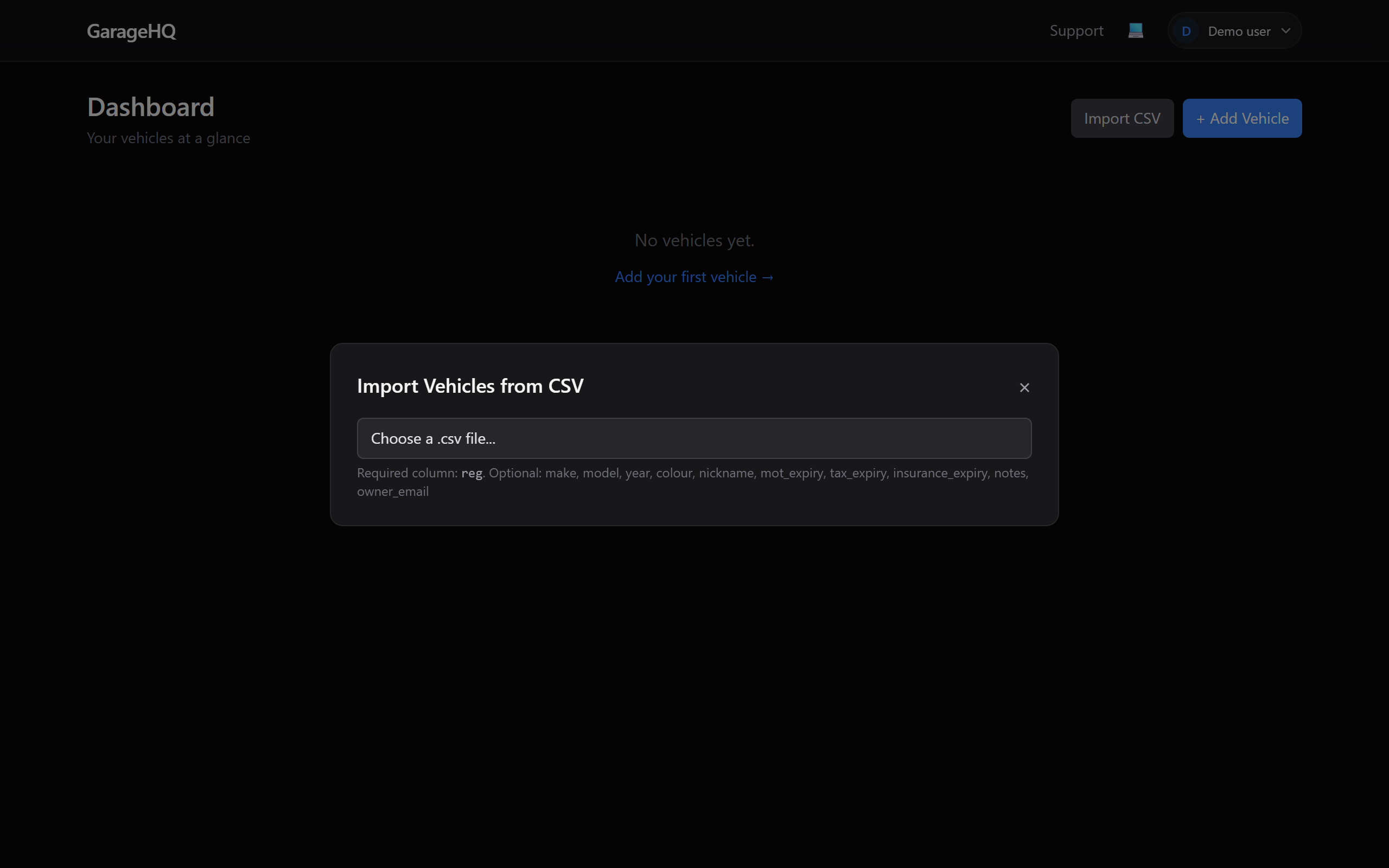
From the dashboard, click Import CSV in the top-right (appears only for eligible plans + roles). A modal opens with a template download link and a file drop-zone.
2. Download the template
Either click Download template (CSV) inside the import modal, or grab it directly here:
Download vehicles-import-template.csv
The template has the correct column headers and one example row. Using it saves a lot of time because GarageHQ is strict about column names.
Required columns
reg, UK registration (e.g.AB12 CDE,ab12cde, whitespace and case normalised on save).
Optional columns
make,model,year,colournicknamemot_expiry,tax_expiry,insurance_expiry, all dates inYYYY-MM-DDformatnotesowner_email, links the vehicle to a customer record at import time
Any column GarageHQ doesn't recognise is ignored (doesn't cause a failure).
3. Fill in the spreadsheet
Open the template in Excel, Google Sheets, Numbers, whatever you use. Add one row per vehicle, save as .csv (UTF-8 encoded, the default in most spreadsheet apps).
4. Upload
Drag your saved CSV onto the modal (or click to browse). GarageHQ validates every row before writing anything to the database:
- Dates must match
YYYY-MM-DD - Regs must be unique within your organisation
- Years must be plausible (1900-2030)
- Rows exceeding 200 are rejected
If validation passes, all vehicles are created in a single atomic batch. The modal shows a success message with the row count and closes.
If validation fails, the modal shows a per-row breakdown, "Row 4: reg field is required", "Row 11: mot_expiry must be YYYY-MM-DD". Fix your spreadsheet, re-upload; no partial writes happen from a failed attempt.
What next?
- Adding a photo to each freshly-imported vehicle.
- Adding garages and insurers so newly-imported vehicles can be linked.
- Managing subscription if your plan doesn't yet include CSV import.