Booking appointments with your garage
When a service, MOT, or inspection comes due, GarageHQ turns the "email the garage and hope for a reply" dance into two clicks from the vehicle's detail page.
1. Open the Appointments section
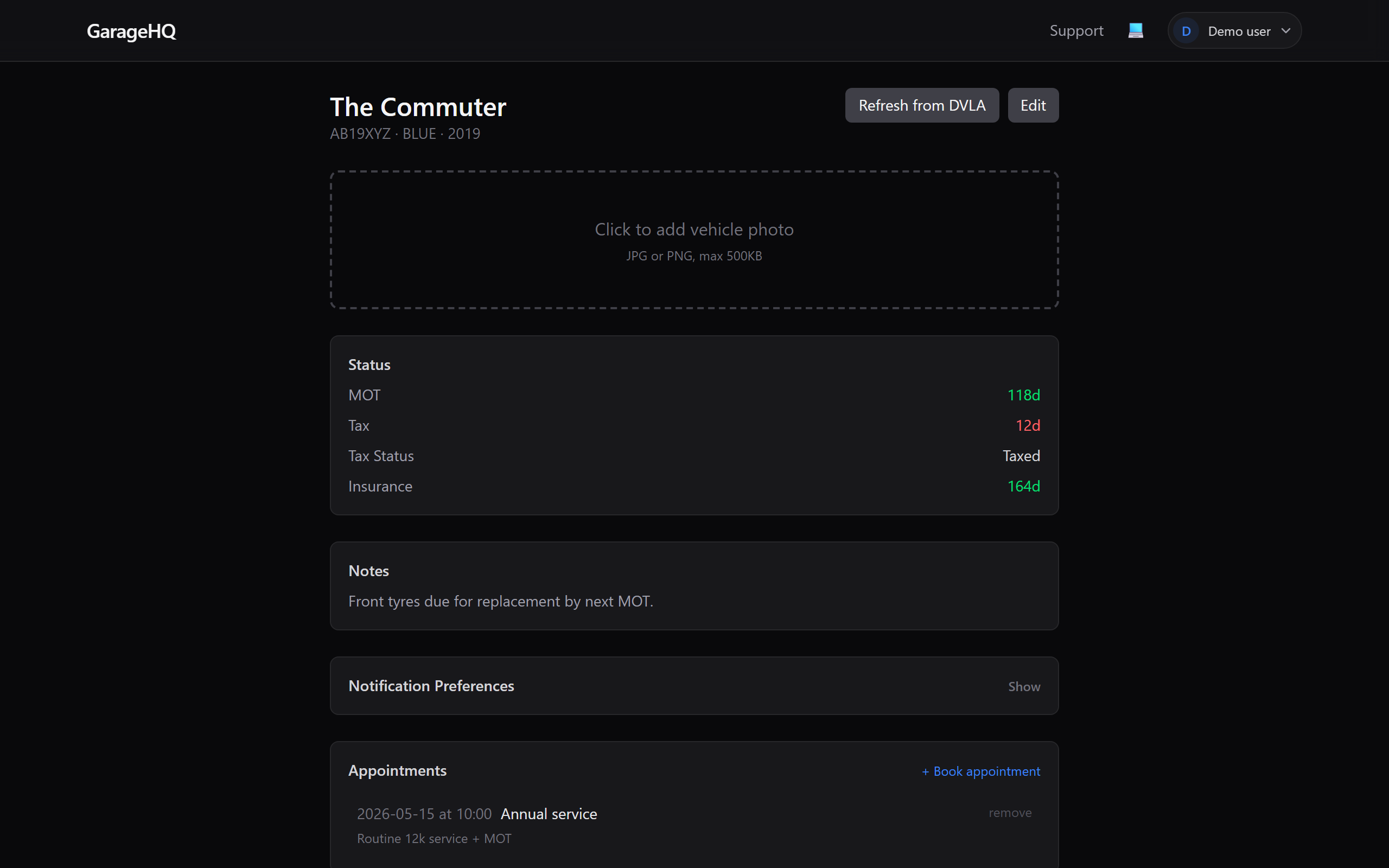
On the vehicle detail page the Overview tab is selected by default. Find the Appointments card and click Book appointment.
2. Pick a date and reason
The form asks for:
- Date (required), date picker, open-ended.
- Reason, pre-set options: Service, MOT, Tax, Insurance check, Diagnostic, Other. Pick whatever matches.
- Notes (optional), anything the garage should know (noises, warning lights, tyres needing replacing).
3. Click Book
Clicking Book appointment does three things in sequence:
- Stores the appointment in GarageHQ so it shows on the detail page and on the dashboard.
- Sends an email to the garage with the vehicle details, requested date, and your notes. The email is branded as coming from you, with a reply-to address the garage can just hit Reply on.
- Attaches a calendar invite (.ics file) so both you and the garage can add it to Outlook/Google Calendar in one click.
Viewing upcoming appointments
All confirmed and pending appointments show in two places:
- The Appointments section on each vehicle's detail page (that vehicle only).
- The dashboard card (if one's due soon).
Click an appointment to see the full details, cancel it, or change the date.
What next?
- Adding a garage, must be done before you can book.
- Notification reminders, control when the "service due" nudges fire that lead you here.